
We have some exciting news to share – brace yourselves! We’re thrilled to present our latest invention – *drumroll* – Generator™!
With just a simple draft or outline, this user-friendly tool will whip up the most captivating subject lines and body copy faster than you can say “copywriting wizard.” Say goodbye to those never-ending brainstorming sessions and tedious editing marathons. Generator™ will have your content gleaming with clarity and accessibility with the push of a button.
And if that’s not enough, combine it with Motiva Message Testing for ultimate optimization.
How it Works
To get started, drop a sample message or even just the outline of a message into the box on the left. We recommend copying from a previous high-performing email you sent to the same audience, which you can easily find using Motiva’s Persona Report. Paste the copy into Generator™ and adjust as needed to reflect the new email topic.
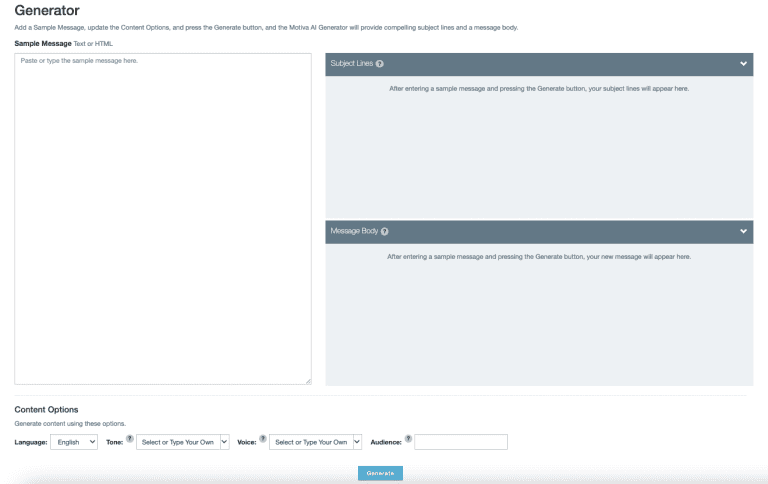
Next, we provide a few ways to quickly customize the generated copy’s language, tone, voice, and audience.

Generator™ currently supports English and French. Tone, Voice, and Audience all take in custom keywords so you have a lot of room to experiment. Tone and Voice also provide a list of predefined options from the drop-down list.
Tone is the stylistic approach and intent of the copy. For example, professional, conversational, or urgent.
Voice is your persona or identity as the writer. Are you writing as a caveman, a famous author, a pushy salesman, or a trusted advisor from XYZ company or brand? You can select from some presets or type in your own. Indicating a specific brand will help Motiva Generator pick up on your existing brand voice and guidelines.
Audience is the group of people you’re emailing. Are they Healthcare Business Executives, Tech Geeks, or Concerned Citizens? Describe your target audience as specifically as possible.
Try different keywords in these fields and see how it impacts the email copy generated.
When you’re ready, click “Generate.” Generator™ will create three subject line versions and one alternate email body version.
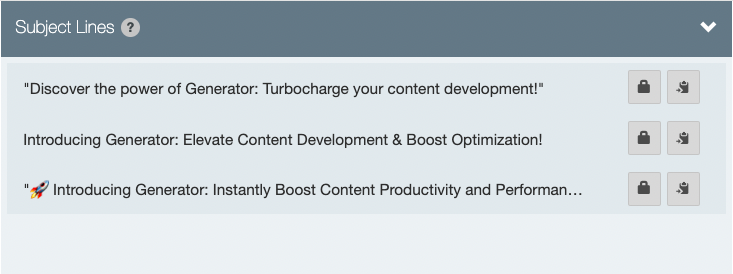
If you like a version, click the lock icon next to it, and it will stay in the list when you generate more versions to compare. This feature is also great for experimenting with different approaches and compiling multiple versions for Motiva Message Testing.
When you’re ready to use the copy, click the clipboard icon, which will automatically add the copy to your clipboard to paste wherever you want to use it.
Version Development for Message Testing
A great way to develop multiple subject lines or email body versions for Message Testing is by using the Tone or Voice fields. You can then use Generator™ variations inside of Motiva Message Testing steps in any campaign.
Start by generating your first version. For example, choose a predefined option in the dropdown for Tone: professional. This will generate copy in a straightforward, descriptive, and semi-formal style. Keep generating versions until you get one you like, then lock it in place by clicking the lock icon.
Next, choose a radically different tone, like conversational or humorous. This will result in stylistic approaches that are very distinct from your first version, which is exactly what we want for a Message Test to be successful.
Remember that if two versions of an email are too similar, readers won’t see a statistically significant difference between them, which may hurt engagement rates. But two radically different versions will most likely make a difference and increase your chances of finding a more effective winner.
Within a few minutes, you have a solid Message Test that’s ready to to setup in Motiva.
Reach out to the team if you’re interested in learning more about Generator™ or schedule a demo of this feature below.
