Give your content a boost in engagement by combining Motiva’s Performance report with Generator & Message Testing

The Motiva Power Move series highlights workflows that combine several Motiva features to help you quickly supercharge your email marketing.
In this post, we’ll show you a workflow for optimizing content using the Performance Report, Generator and Message Testing.
TLDR: Quickly grab the best performing content for a specific campaign and use it as your seed in Generator to give your single send email or Message Test a boost.
Let’s say you need to write an email for a regular campaign or for a specific audience and you’re not sure where to start.
Performance Report
Navigate the Performance Report in the main navigation menu of the Motiva platform.
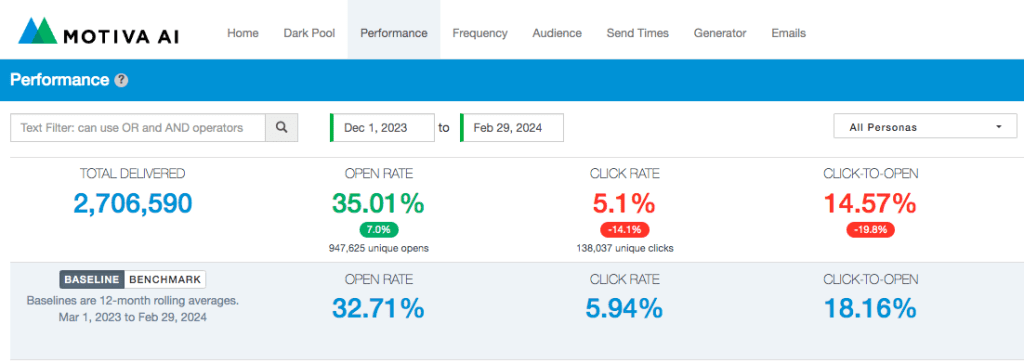
Use the date and text field as well as the persona dropdown to narrow the campaigns listed to a specific campaign type or a specific audience.
The text field allows you to use OR and AND operators to isolate specific characters in the campaign naming convention.
Review the performance metrics and find the top performing emails, ideally with a sizable number of total delivered.
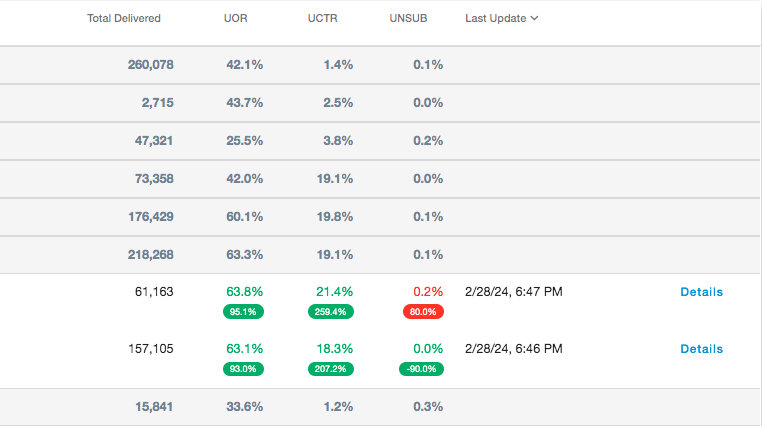
All the way over to the right for each email is a blue “Details” option. Click the “Details” and a pop-up window will appear containing all the text from the email including the subject line and the body copy. You can quickly copy it by clicking the clipboard icon next to the sub-header of the content you want.
Generator
Navigate to Generator in the main navigation menu and drop the copy into the Sample Message field at the bottom of the page.
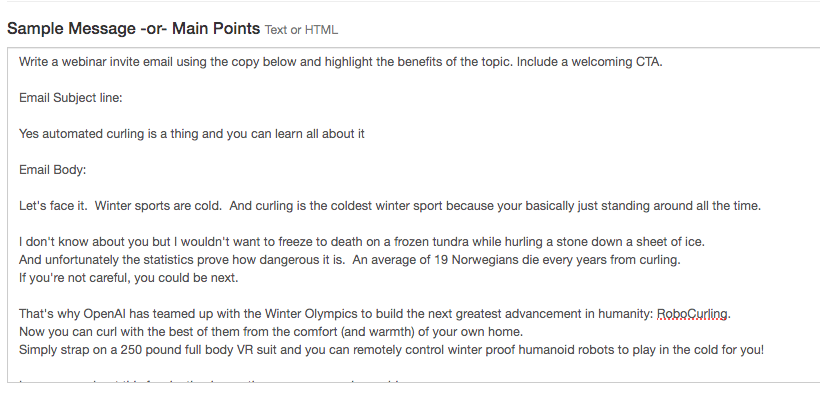
Tweak the copy to reference the new topic. You can also write instructions at the beginning to direct the output. For example, “Write a webinar invite email using the copy below that…INSERT SPECIAL DETAILS.” You could ask it to highlight the benefits of the topic or include relevant context. Remember to always fact check the output!
Guide Generator even more by selecting and/or entering in values for the fields on the left including Brand / Voice, Tone, Audience, Keywords and Language. Learn more by checking out our support article on how to use Generator.
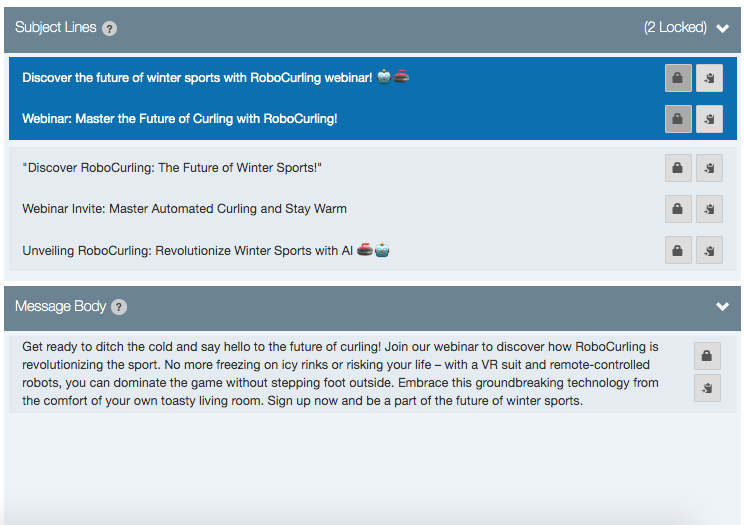
Generator will automatically write subject lines and body copy for you. Review the options, save the versions you like by clicking the lock icon and click generate again to get new versions. Tweak the sample message field and the content options to the left to get new versions.
Message Testing
Developing a Motiva Message Test has never been easier. Simply changing the values in the content option fields can dramatically update the voice, tone, and keywords of the copy.
You can provide additional instructions to adjust the subject line for open rate experiments or the body copy and CTA for click rate experiments.
Keep experimenting, save the versions you like and then choose the number of versions you want to include in your Message Test. Quickly copy the versions to your clipboard by clicking the icon and paste them in your content development document or Eloqua email asset.
Learn more about the powerful combination of Generator & Message Testing.
